Computing at Lawrence Livermore National Laboratory (LLNL)
COMPASS primarily uses computing resources located at LLNL. The systems at LLNL you will most likely be using are Dane, Tuolumne, and Tioga. Information about these systems, such as CPU and GPU architectures, number of nodes, and cores per node, can be found on the HPC@LLNL website. Additionally, the Livermore Computing PSAAP IV Quick Start Guide contains more in-depth information about logging in, requesting for help, file systems, software, compilers, and debuggers available on LLNL systems.
Directory Structure on LLNL Systems:
The following directories are available on all LLNL systems:
/g/g[1..N]/{USER}: Home directory ($HOME). 24GB of storage./usr/workspace/{USER}: Workspace directory. 2TB of storage./p/[lustre[1..N],gpfs[1..N]]/{USER}: Parallel file system. Run programs that do parallel I/O here. 20TB of storage but files are subject to purging and are not backed up.
You can check your current storage usage with the command quota -v. Please note that these quotas are shared across all LLNL systems - that is, you don't get 24GB of home directory storage for Tioga, another 24GB for Dane, etc.
Tips and Recommendations for LLNL systems:
- Place Spack in your workspace directory because it can easily take up all the storage in your
$HOMEdirectory. - In your
$HOMEdirectory, place global configuration settings in the.profilefile. These are settings initialized when logging in to any system. For example, create a.bashrcfile and then addsource ~/.bashrcto your.profilefile. - Activate Spack in
.profileor.bashrcby adding the linesource /path/to/spack/spack/share/spack/setup-env.sh. This can also be done for other libraries that require sourcing a setup script, such as Benchpark and Ramble. - While on one machine, you can access another machine with the command
ssh [machine name]. For example, if you are logged in to Dane you can move to Tioga usingssh tioga.
Connecting to LLNL Systems using VSCode
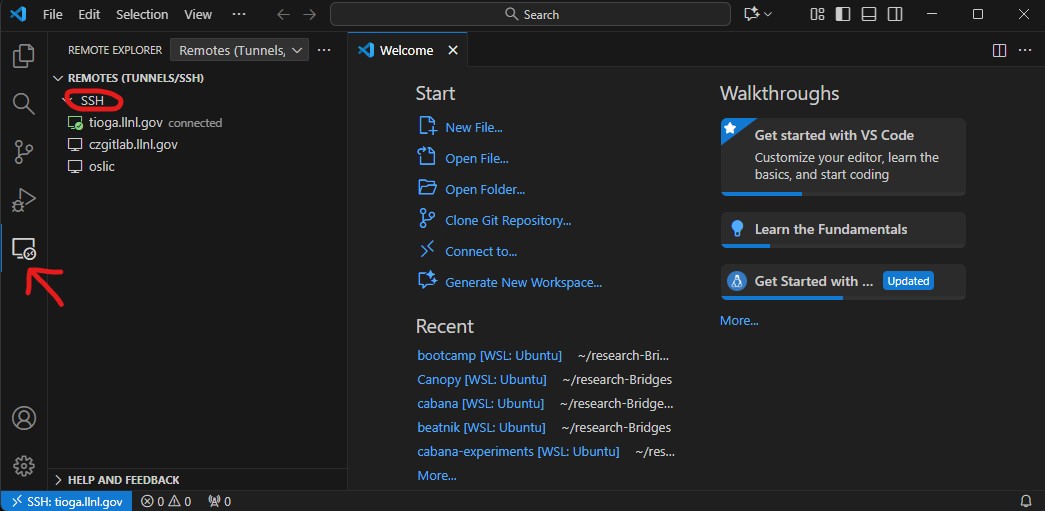
It is possible to use the Remote Explorer in VSCode to SSH into LLNL systems. To do this, select the "Remote Explorer" tab on the left and ensure the option "Remotes (Tunnels/SSH)" is selected. Then, hover your mouse over the "SSH" letters and select the "+" symbol that appears to the right. (See image below) Where prompted, enter your username and the name of the remote host, for example myusername@tioga.llnl.gov. Finally, enter your password (including the 6 digits from your RSA Token) and you will be able to connect.
Connecting to LLNL Systems using Remote Desktop
It is also possible to use the SSH client RealVNC to remote desktop into LLNL systems. To connect using RealVNC, follow the instructions here. Important: You do not need to create an account to use RealVNC. Make sure to install RealVNC Connect Version 7, not Version 8. On the welcome page, select the option that says "Use RealVNC View without signing in".