Pulling, Committing, and Pushing
As mentioned previously, distributed version control systems like GitHub rely on a remote repository for distribution of code and updates.
However, this does not occur automatically; instead it is the developer's responsibility to keep remote and local repositories in sync.
This article covers the processes required to synchronize remote and local repos, including the following topics:
- Acquiring a local repo - clone
- Retrieving and applying updates - fetch and pull
- Staging changes - add and commit
- Publishing your changes - push
Acquiring a local repo
The first step to contributing to any project is getting access to it.
For public repos, this isn't an issue, but if a repo is private, you have to be invited by those managing it.
For our organization, please contact one of the organization owners to get access to a repo.
Owner names and emails are covered in the previous article.
Once you have access to a repo, all you need to do is clone it.
To do this click the green Code button, and copy either the HTTPS or SSH link, depending on whether you have a pass token or SSH key set up, respectively.
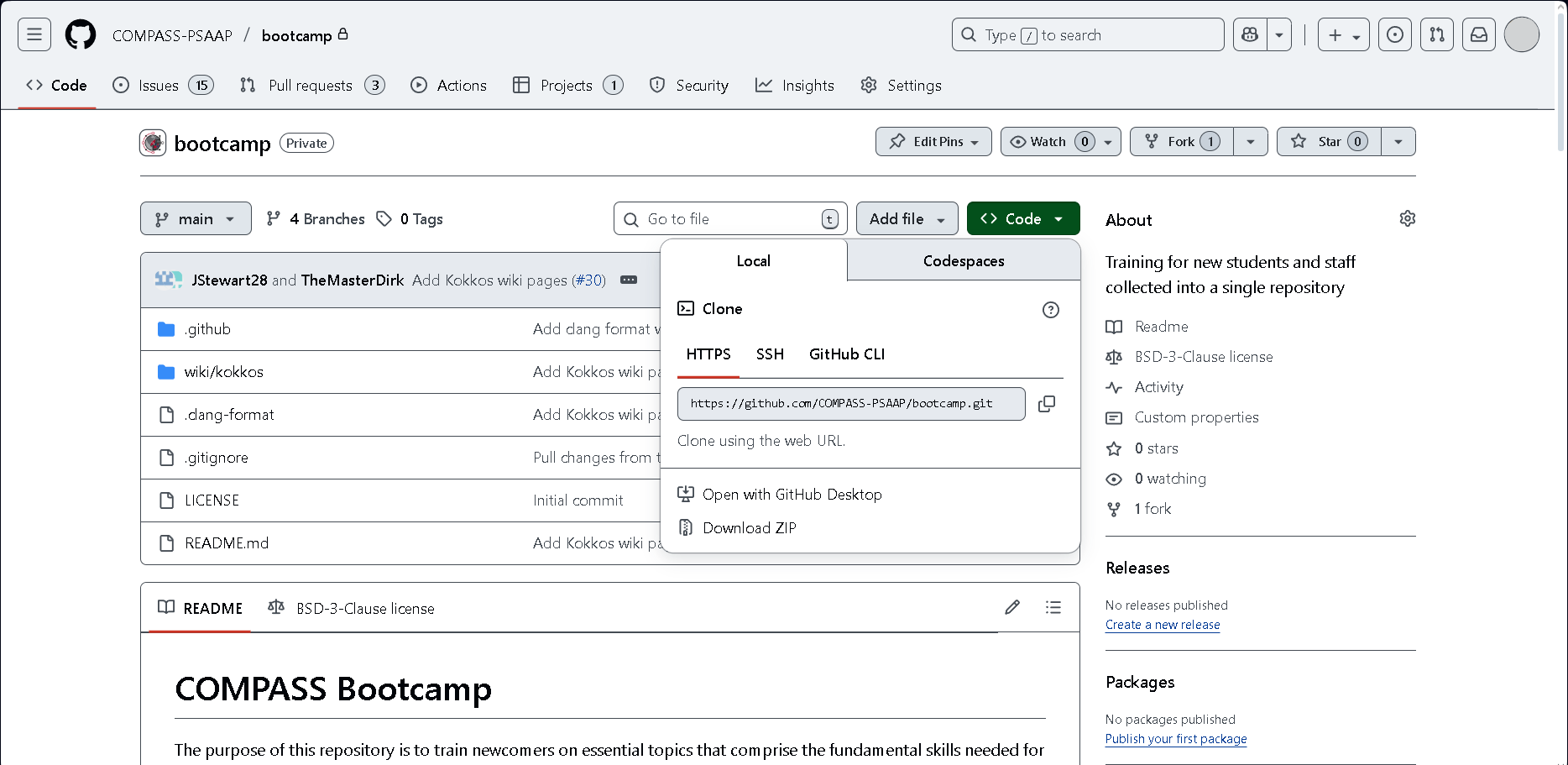
Once you have the appropriate link copied, you can create a local repository by running git clone <link> where <link> is the HTTPS or SSH link copied earlier.
Retrieving and applying updates
Unless you are working alone, the first thing you should do before starting a new task is to retrieve and apply changes made to the project by others.
Doing this synchronizes your local repo with the remote one, ensuring you're working on the latest version and removing potential merge conflicts when you're ready to integrate your work back into the remote repo.
Most of the time you want to apply changes regardless of what they are. To do this, use git pull.
The pull command downloads and applies changes from the remote repo to your local one.
In some situations, you might want to preview changes from the remote repo before applying them.
In these cases, you can use git fetch to pull changes from the remote repository without applying them, then use git log HEAD..origin/<branch> to see all of the commits not retrieved by fetch, then use git log HEAD..origin/<branch> to see all of the commits not pulled down by fetch.
To apply the changes, run git pull or git merge.
Staging and Committing Changes
Now that your local repo is up-to-date with the remote, you can make changes without causing conflicts, as long as someone is not working in the same section and pushing changes to the remote repository at the same time as you. After making changes, you need to then stage and commit them locally before pushing them up to the remote repo.
Staging is the process of marking files to be committed and is done using git add file1 file2... fileN where each file can be a path to a single file or a wildcard expression matching multiple files.
Commits determine which updates should be pushed to the remote repo. This allows you to be selective in which updates you send and allows you to partially sync your repo with the remote even if some of your updates aren't complete.
Committs are completed using git commit. This will open up the system's default text editor and so you can enter a commit message describing your changes. You can also specify the message in-line using the -m flag (git commit -m "message").
Pushing is the action that actually updates the remote repo with your changes.
Each time you run git push, it will send all new commits to the remote repo. In most COMPASS repos, pushing directly to the main branch is blocked. Instead, our organization's policy is to create new branches for each new feature and use pull requests to merge them into the main branch after they've been reviewed. Branches and pull requests will be covered in the next article.