Merge Conflicts, Rebasing, and More
The asynchronous and collaborative nature of a project may result in merge conflicts. The easiest merge for Git to do is fast-forwarding a local branch. This type of merge happens when your local branch has no extra commits and is simply behind the upstream branch. As a result, Git can "fast-forward" your local branch to match the upstream. The rest of this section focuses on techniques to handle merge conflicts.
Resolving Merge Conflicts
The two most common places you'll see a merge conflicts are 1) on GitHub when a pull request cannot automatically be merged, and 2) when you update your local branch with the latest version of the remote branch with git pull. This section explains how to solve these conflicts.
Manually Solving Merge Conflicts
Git gives the following message when it detects a merge conflict:
$ git merge feature1
Auto-merging file.txt
CONFLICT (content): Merge conflict in file.txt
Automatic merge failed; fix conflicts and then commit the result.
This means that there are files where Git cannot determine which text should be used, even if it is obvious to you. There are flags one can add to git merge to help git resolve merge conflicts, but they will not be discussed in this article.
When in a state of resolving merge conflicts, run git status to see more details:
$ git status
On branch feature2
You have unmerged paths.
  (fix conflicts and run "git commit")
  (use "git merge --abort" to abort the merge)

Unmerged paths:
  (use "git add <file>..." to mark resolution)
        both modified:   file.txt

no changes added to commit (use "git add" and/or "git commit -a")
In this example, file.txt needs to be edited to pick the outcome of the merge. When resolving the merge, there are three lines (per merge conflict) that git will insert into the files with conflicts:
- <<<<<<< HEAD : The current branch's version of the file (likely your own changes you've been working on).
- =======: The separator between the two versions of the file
- >>>>>>> <branch name>: The end of the changes in the OTHER version of the file (and the branch it's coming from)
There are tools to resolve merge conflicts visually, including VScode if setup with Git. For this example, the output from a generic text editor is shown below:
Line A
<<<<<<< HEAD
Line B (edited on feature2)
=======
Line B (edited on feature1)
>>>>>>> feature1
Line C
In this output, it means there is a conflict between branches at Line B. On the current branch, feature2, we have added the text "(edited on feature 2)", so we when try to merge in the branch feature1, Git is unable to resolve the differences between the lines (i.e., there aren't just whitespace changes). Note that while some merge conflicts are git not understanding shifts in text, many conflicts are something you will need to resolve by figuring out the correct text, or by collaborating with peers to determine the proper result. Lastly, when editing git files manually, be sure to remove ALL the text lines git adds: <<<<<<< HEAD, =======, and >>>>>>> <merging branch name>, as git will not double check you when you commit a file!
Once you are satisfied with the output, commit the file and push to finish the merge.
Rebasing
Let's say the upstream branch has changes you want to bring in, and you know these changes don't conflict with the changes you have been working on. In this case, git rebase allows you to move the starting point at which your branch broke off from. Just don't forget to make sure your local branches are up to date with the upstream versions!
Here's a text example that shows what happens. Consider a main branch with two commits "A" and "B". You create a new branch after commit "B", and make commits "1" and "2":
main      your_branch
 A
 |
 B ----->     1
              |
              2
While you were working on your code, Alex had his PR merged into the main branch, creating a tree like this:
main      your_branch
 A
 |
 B ----->     1
 |            |
 C            2
At some point, you will have to resolve the the differences between "C" and "2". If you know that they won't conflict in any way, you can do a rebase to change the commit you branched off from. Here, the command would be git rebase main (assuming you are on branch your_branch locally). After doing that command, now the final commit tree should look like this:
main      your_branch
 A
 |
 B
 |
 C ----->     1
              |
              2
The proper git techniques is to merge features branch into "main/develop" style branches, and rebase your local branches to get the upstream changes in locally. Ultimately, merging vs rebasing to get those changes is up to you. Rebasing helps keep the git history clean, especially since you don't get extra "merged in branch foo" commits, but sometimes just doing a quick merge is the easiest solution. Further, if the final pull request into another branch will end up squashing all commits into a single commit anyways, the only difference between merging and rebasing is personal preference, as that final squashed commit will be the only commit after the pull request.
Pull Request Merging
As alluded to previously, there are three options for how pull requests get merged into the target branch, as shown in this image:
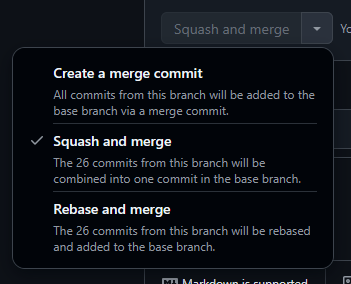
In almost all scenarios, "Create a merge commit" or "Squash and merge" are the preferred options. The third option, "Rebase and Merge", is generally not preferred as it will change git history and make it harder to follow a branch's life cycle. If you are working on a repo that efficiently uses feature branches, or uses a separate develop branch before merging back to the main branch, we recommend the "Squash and Merge" option. The advantage of "Squash and merge" over "Create a merge commit" is that you get a single commit (see below) where you can specifically call out all the changes in the text body of the commit instead of adding all 26 "typo fixed" or "added missing file" commits directly onto the target branch's history. For both squashes and merge commits, GitHub will put text in the final commit that makes it clear which pull request was merged.
Example of how squashing works:
Branch setup at time of Pull Request
main      your_branch
 A
 |
 B ----->     1
              |
              2
              |
              3
------------------
Main branch history after Squash Merge:
main
 A
 |
 B
 |
 D
 ------------------
 Main branch history after regular Merge Commit:
 main      your_branch
 A
 |
 B ----->     1
 |            |
 |            2
 |            |
 C      <---- 3
In the squash merged example,
D is the only commit that is added to the history of main, but in the regular merge example, all commits of the feature branch (your_branch) as well as a specific merge commit, C, are added to main.