COMPASS-PSAAP Website Content Management Guide
Welcome to the documentation for managing content on the COMPASS-PSAAP website. This guide explains how to add and remove people, projects, and publications using automated GitHub Issue forms, how to make manual edits via the GitHub web editor, and how to troubleshoot common issues.
1. Workflow Overview
The website uses an Issue-to-PR automated pipeline. This allows non-technical contributors to submit content via structured GitHub Issue forms without needing to use Git or clone the repository locally.
The Lifecycle of a Request:
flowchart TD
    subgraph S1["Phase 1: Issue & Review"]
        A["1. Contributor fills Issue Form"] --> B["2. Website Team reviews Issue"]
        B --> C["3. Team applies 'create-pr' label"]
    end

    subgraph S2["Phase 2: Automation (GitHub Actions)"]
        D["4. Workflow processes issue & assets"] --> E["5. Automated PR is generated"]
    end

    subgraph S3["Phase 3: Review & Deployment"]
        F["6. Review diff & merge into main"] --> G["7. Site builds & publishes"]
    end

    C --> D
E --> F- Submission: A contributor opens an Issue using one of the pre-configured issue templates.
- Review: The
@COMPASS-PSAAP/website-teamreceives a notification and reviews the submitted info. - Trigger: Once verified, a team member applies the label
create-prto the issue. - Processing: GitHub Actions triggers the workflow (
.github/workflows/process-issue.yaml), which:- Parses the form fields.
- Downloads and optimizes any uploaded images into the appropriate subfolder.
- Generates or updates the corresponding file (
_members/,_data/projects.yaml, or_data/sources.yaml). - For publications, automatically fetches and formats citation metadata.
- Pushes the changes to a new branch and opens a Pull Request (PR).
- Swaps the issue label from
create-prtoautomated-pr.
- Approval & Merge: The team reviews the PR preview and diff, then clicks Merge. GitHub Pages deploys the updated website automatically!
2. Managing People
2.1 Add a Person
Use this when a new student, researcher, programmer, or PI joins COMPASS-PSAAP.
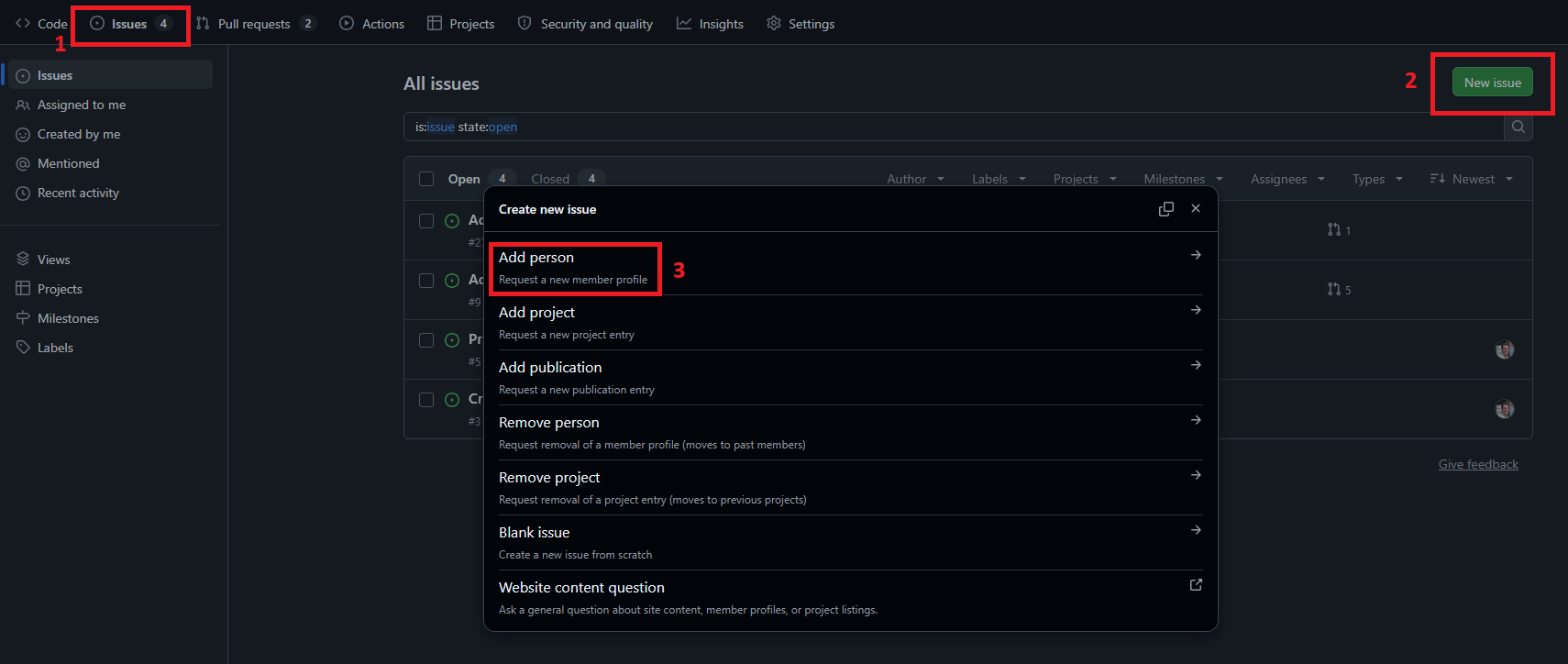
- Go to the Issues tab on GitHub
- Click New Issue.
- Click on Add person.
- Fill out the form fields:
- Name (Required): The person's full name as it should appear on the website (e.g.,
Jane DoeorJ. Robert Oppenheimer). - Image (Optional): Drag and drop a photo (PNG or JPG) into the text box. The automation will download and save it to
images/team/<name-slug>-photo.<ext>. You do not need to type anything in this box - Role (Required): Select one from the dropdown (pick the best fit, the next box allows elaboration):
principal-investigatorprogrammerstudentadmin
- Description (Required): A concise descriptive title (e.g.,
Graduate Research Assistant,Senior Software Engineer). This field will be shown on the site (the Role will not.) - Affiliation (Required): University or laboratory (e.g.,
University of New Mexico). - Email (Required): Professional contact email.
- Home page (Optional): Personal website URL.
- ORCID (Optional): 16-digit ORCID identifier (e.g.,
0000-0002-1825-0097). - Personal Summary (Optional): Markdown-supported biography or research interests.
- Notes (Optional): Internal notes for reviewers (this will not be published to the website).
- Checklist (Required): Double check the above information is correct and check the confirmation box.
- Name (Required): The person's full name as it should appear on the website (e.g.,
- Click Submit new issue. You do not need to worry about filling out any of the fields below the final confirmation checkbox.
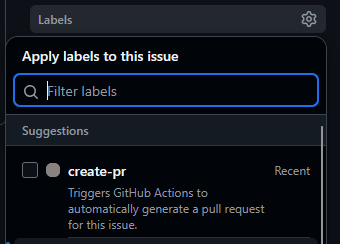
- Approval: A website team member reviews the issue and adds the
create-prlabel in the right-hand sidebar.
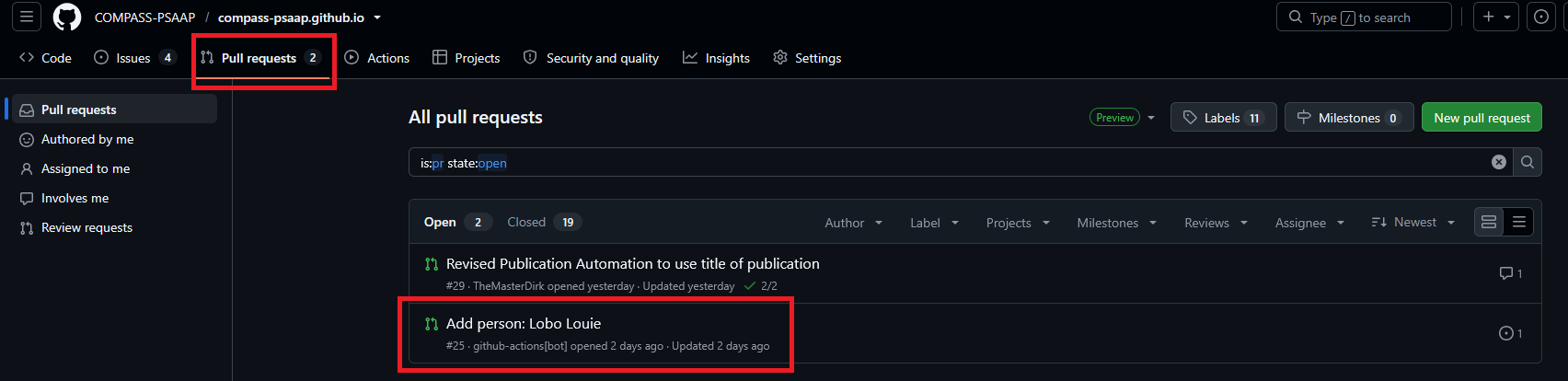
- Output: A Pull Request named
Add person: <Name>will automatically be created that adds the file and/or image for the new person.
2.2 Archive a Person
When a team member leaves or graduates, their profile is not deleted. Instead, it is archived to the "Past Members" section of the Team page.
- Click New Issue -> Remove person -> Get started.
- Fill out the fields:
- Name (Required): Copy and paste the exact name as it appears in the person's heading on the website.
- Reason for archival (Required): e.g.,
Graduated in May 2026,Moved to national lab. - Notes (Optional): Any extra internal context.
- Checklist (Required): Confirm the name matches.
- Click Submit new issue. You do not need to worry about filling out any of the fields below the final confirmation checkbox.
- Approval: A website team member reviews the issue and adds the
create-prlabel in the right-hand sidebar. - Output: After applying the label, the automation locates
_members/<name>.mdand updatesrole: past-member. In the resulting PR, the member moves under the "Past Members" heading on the Team page.
3. Managing Projects
3.1 Add a Project
Use this to add software packages, datasets, tutorials, or research initiatives to the Projects page.
- Click New Issue -> Add project -> Get started.
- Fill out the fields:
- Project Name (Required): Title of the project (e.g.,
Application Communication Profiler). - Project Link (Required): URL to the GitHub repository, documentation, or paper.
- Image (Optional): Drag and drop an image/logo. If omitted, a clean placeholder image will be used.
- Project Summary (Required): A concise description of the project goals and scope.
- Notes (Optional): Internal reviewer notes.
- Checklist (Required): Check the confirmation box.
- Project Name (Required): Title of the project (e.g.,
- Click Submit new issue. You do not need to worry about filling out any of the fields below the final confirmation checkbox.
- Approval: A website team member reviews the issue and adds the
create-prlabel in the right-hand sidebar. - Output: A Pull Request is created that will append a new item to
_data/projects.yamland download the image toimages/projects/<project-slug>-photo.<ext>.
3.2 Archive a Project
Completed or deprecated projects are moved to the "Previous Projects" category.
- Click New Issue -> Remove project -> Get started.
- Fill out the fields:
- Project Name (Required): The exact title of the project as shown on the website.
- Reason for archival (Required): e.g.,
Project concluded; superseded by version 2. - Checklist (Required): Confirm match.
- Click Submit new issue. You do not need to worry about filling out any of the fields below the final confirmation checkbox.
- Approval: A website team member reviews the issue and adds the
create-prlabel in the right-hand sidebar. - Output: The script updates the project entry in
_data/projects.yamlwithgroup: previousand creates a Pull Request for the changes.
4. Managing Publications
4.1 Add a Publication
Use this to add a new paper, preprint, poster, or workshop paper to the Research page.
- Click New Issue -> Add publication -> Get started.
- Fill out the fields:
- Title (Required): The full title or working name of the publication (e.g.,
Scaling All-to-All Operations Across Emerging Many-Core Supercomputers). This is used to name the PR and branch. - DOI or URL (Required):
- For indexed papers/preprints, provide the DOI:
doi:10.1145/3731599.3767520or10.48550/arXiv.2602.15356. - For posters or custom web links, provide the URL:
https://....
- For indexed papers/preprints, provide the DOI:
- Authors (Optional override): Comma-separated author list if not automatically indexed.
- Publisher / Date (Optional override): Venue and date if needed.
- Description (Optional): Extra notes (e.g.,
SC'25 Research Poster). - Checklist (Required): Confirm verification.
- Title (Required): The full title or working name of the publication (e.g.,
- Click Submit new issue. You do not need to worry about filling out any of the fields below the final confirmation checkbox.
- Approval: A website team member reviews the issue and adds the
create-prlabel in the right-hand sidebar. - Output: A Pull Request titled
Add publication: <Title>is opened with these changes:- The DOI/URL is added to
_data/sources.yaml. - The citation engine (
_cite/cite.py) runs automatically, queries Manubot/Crossref, formats the full citation, and updates_data/citations.yaml. - A potential change to
.cache/*folder may happen in one of these Pull Requests. That is ok, just behind the scenes tweaks that will not affect the website.
- The DOI/URL is added to
Note
Removing a Publication: Removing a publication is handled through a quick Manual Edit by deleting its entry from _data/sources.yaml.
5. Manual Edits via GitHub Web Editor
For small adjustments—such as fixing a typo in a bio, updating an email address, adjusting a project description, or removing an erroneous publication—using GitHub's built-in web editor is the fastest approach. This approach should also be used when a person or project needs to be completely removed from the site.
Step-by-Step Instructions:
- In the file browser on GitHub, navigate to the file you wish to modify:
- Person: Go to
_members/and click on<first-last>.md. - Project: Go to
_data/projects.yaml. - Publication: Go to
_data/sources.yaml.
- Person: Go to
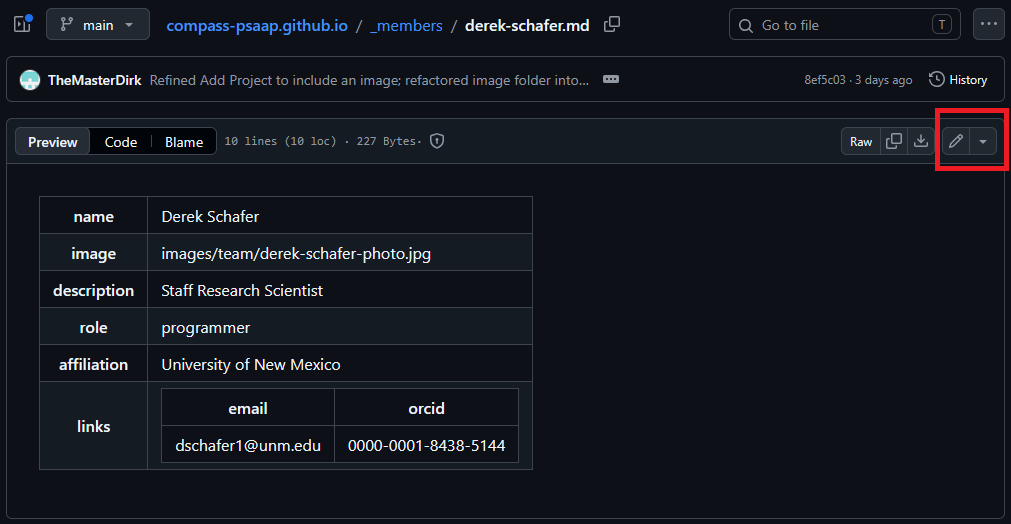
- Click the Pencil icon ("Edit this file") at the top right of the file view.
- Make your edits in the in-browser text editor.
- Click on the Commit changes box. Most of the auto-filled text on this page is fine, but feel free to be more descriptive if it makes sense.
- Select "Create a new branch for this commit and start a pull request". This is the preferred method, even for the website team. However, the website team does have the ability to bypass the need for a Pull Request should urgent edits need to be made.
- Click Propose changes.
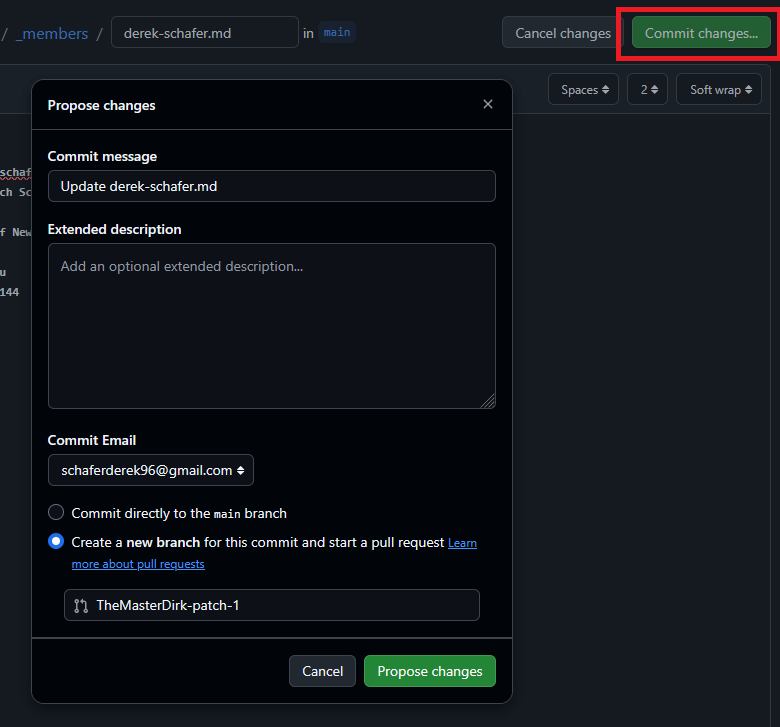
- Click Create pull request. The website team will review and merge it.
6. Troubleshooting & FAQs
"Why didn't my Pull Request get created?"
Check the following common causes:
1. Was the label spelled correctly? The trigger is case-sensitive: it must be exactly create-pr.
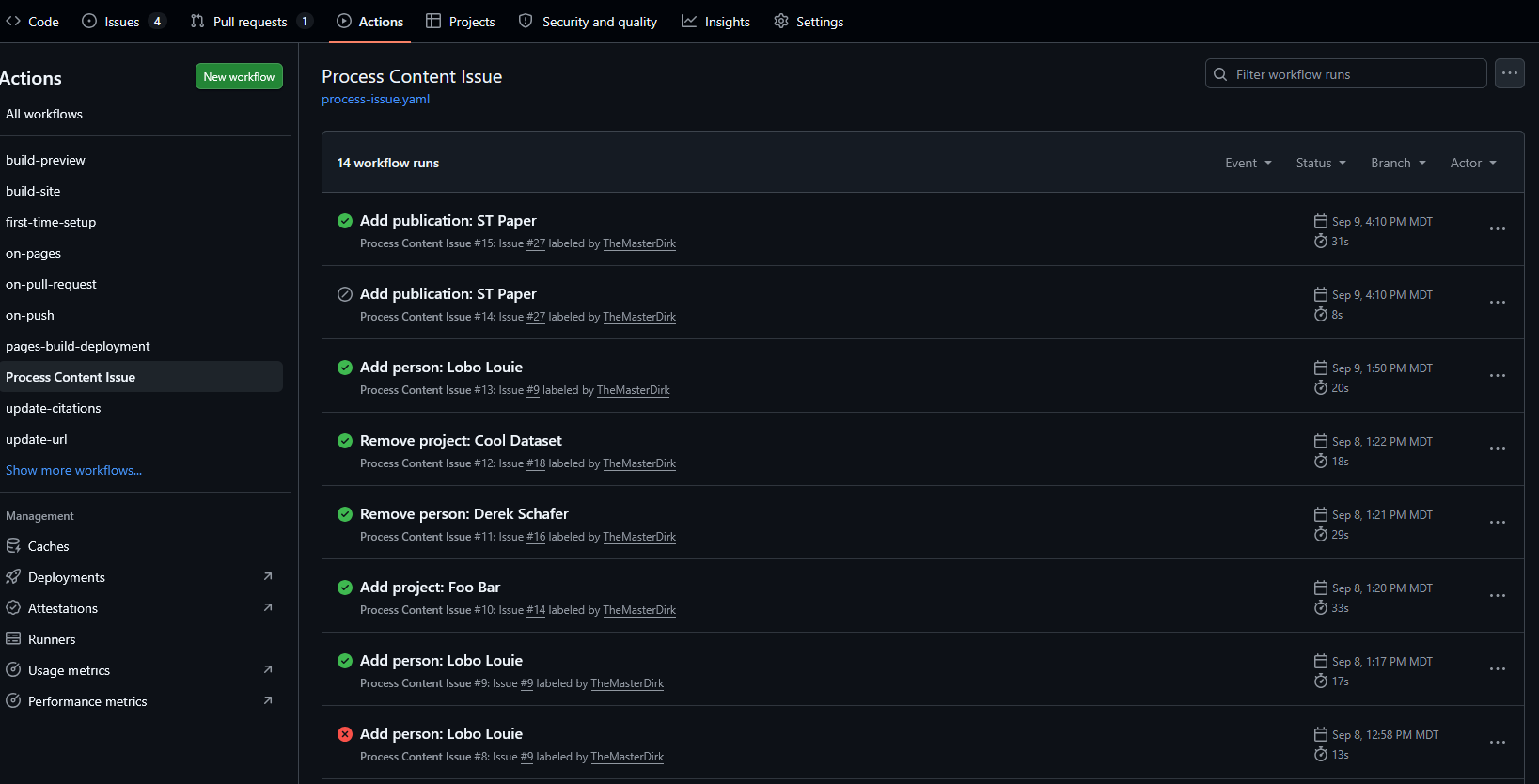
2. Did the workflow fail?
- Click on the repository's Actions tab.
- Look for the workflow named Process Content Issue.
- If there is a red ❌ icon, click into the run and inspect the Process Issue step. The error message will state what went wrong (e.g., target file could not be found, or image link was unreachable).
3. Was the name an exact match? For removal requests, the script searches for an existing file or entry. If the name was misspelled or formatted differently than the heading on the website, it will report: Could not find member file for <Name>.
"How do I re-do or update a request with new information?"
If you made a typo on the issue, and have not added the new create-pr label, you can simply edit the post and correct any errors. Do not edit the formatting around the fields, as this may mess up the automation!
If an automated PR was generated with incorrect information or you need to fix a mistake after the create-pr label was added:
1. Option A: Close and re-trigger (preferred)
- Wait for the incorrect Pull Request to finish building.
- Close the generated Pull Request (and delete its branch, which may take a second to pop up after closing).
- In the original Issue, remove the automated-pr label.
- Edit the issue body with the corrected information.
- Re-add the create-pr label. The action will run again with the updated data.
2. Option B: Push directly to the PR branch
- In the open PR, navigate to the Files changed tab.
- Click the three dots (...) on the file and choose Edit file to fix the typo directly on the PR branch.
"How do I preview my changes before merging?"
- Live PR Preview: In any open PR, if you close and immediately reopen the PR, the
build-previewGitHub Action will run and post a comment with a live preview link (https://compass-psaap.github.io/preview/pr-<number>/). - Files Changed Tab: Check the diff on GitHub to make sure only the intended files and fields were altered.
"Can I skip the required review?"
- Only if you are a member of the website team. Otherwise your changes must get approval from them.
7. Appendix: Repository File Layout
A quick reference of where files live in this repository. Not all files are listed, just the ones relevant to the topics above.
compass-psaap.github.io/
├── .github/
│   ├── ISSUE_TEMPLATE/        # Forms for Add/Remove People, Projects, Publications
│   │   ├── add-person.yml
│   │   ├── remove-person.yml
│   │   ├── add-project.yml
│   │   ├── remove-project.yml
│   │   └── add-publication.yml
│   ├── scripts/
│   │   ├── process_issue.py   # Python script that converts issues into code changes
│   │   └── requirements.txt   # Python dependencies for above script (ruamel.yaml)
│   └── workflows/
│       ├── process-issue.yaml    # Workflow triggered by the 'create-pr' label
│       ├── build-preview.yaml    # Generates temporary preview deployments
│       └── update-citations.yaml # Manubot citation compiler
├── _data/
│   ├── projects.yaml          # List of all active and previous projects
│   ├── sources.yaml           # Raw DOIs and URLs for publications
│   └── citations.yaml         # Auto-generated formatted citations (DO NOT EDIT MANUALLY)
├── _members/                  # Markdown file per team member (<first-last>.md)
├── images/
│   ├── team/                  # Headshots (<first-last>-photo.jpg/png)
│   ├── projects/              # Project graphics (<slug>-photo.jpg/png)
│   └── site/                  # Logos, banners, background graphics
├── research/                  # Research & publications web page
├── team/                      # Team listing web page
├── projects/                  # Projects listing web page
└── CODEOWNERS                 # Assigns @COMPASS-PSAAP/website-team to all PRs